Creating Your First User Account
When you launch USTAAD Typing Academy for the first time, you will be greeted with an account creation dialog. This is a one-time setup step that personalizes your experience and keeps your progress separate from other users on the same device.
Step 1: The Account Creation Dialog
On first launch, USTAAD automatically opens the Create Account dialog. You do not need to sign in or connect to the internet — everything is stored locally on your device.
You will be asked to enter:
- Account Name (required) — This is the name that will appear on your profile, results, and certificates.
- Email Address (optional) — You can add an email address for your account. This is not required to create an account or use any features.
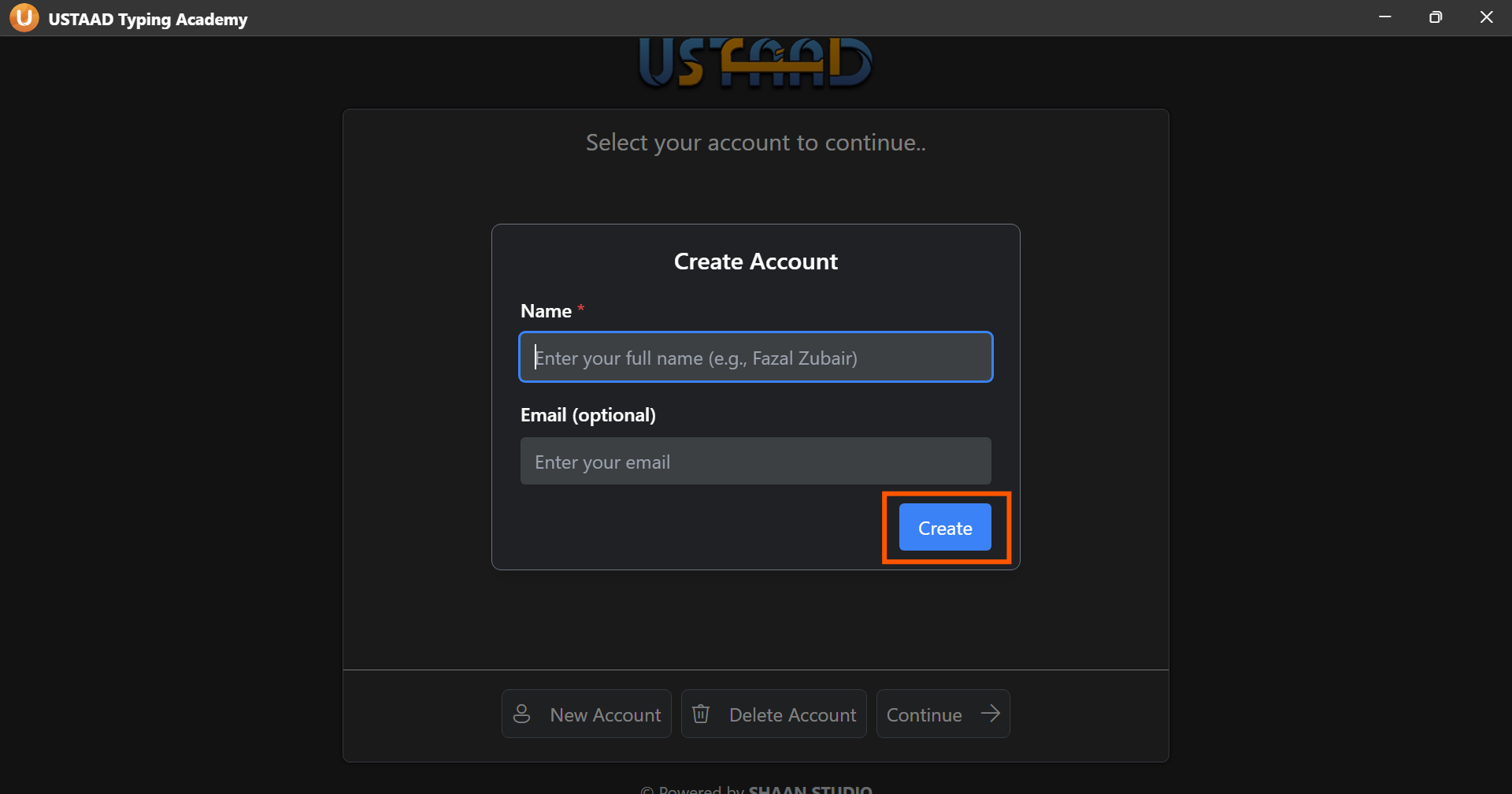
You can skip the email field and still create your account. Just enter your name and click Continue.
Step 2: Creating the Account
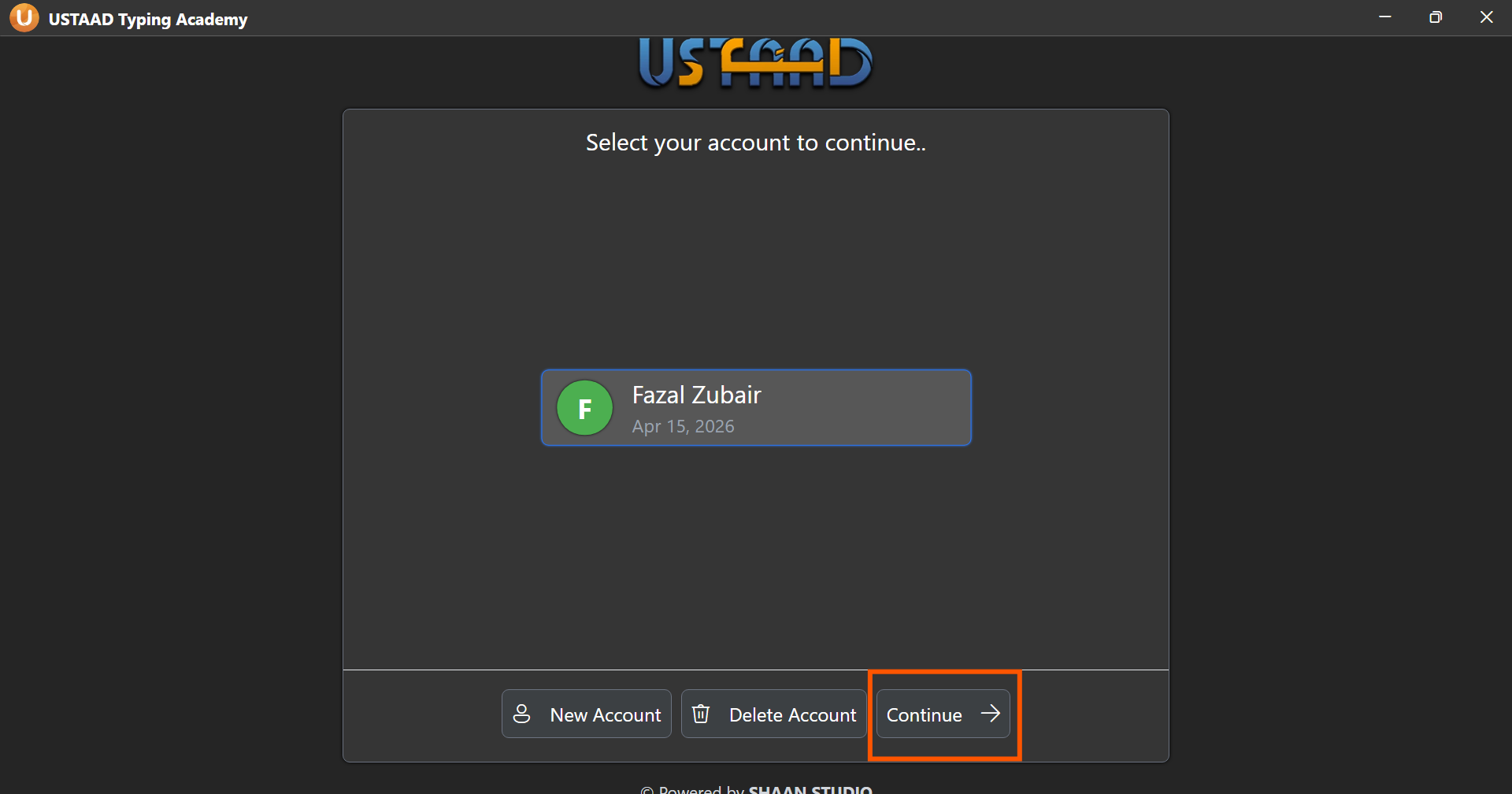
Once you have filled in your details, click the Continue button. Your account will be created instantly and you will be taken to the User Accounts page.
Step 3: The User Accounts Page
After your account is created, you will land on the User Accounts page. This is where all accounts on your device are managed. From here, you have three options:
Create New Account
This option allows you to add another user account to the software. This is useful when multiple people are using USTAAD Typing on the same device — each person can have their own separate account with their own progress, results, and settings.
For the best performance, it is recommended to keep a maximum of 5 user accounts on a single device.
Delete Account
This option permanently deletes the selected user account. Deleting an account will remove:
- All typing progress and history
- All test and lesson results
- All personal settings and preferences associated with that account
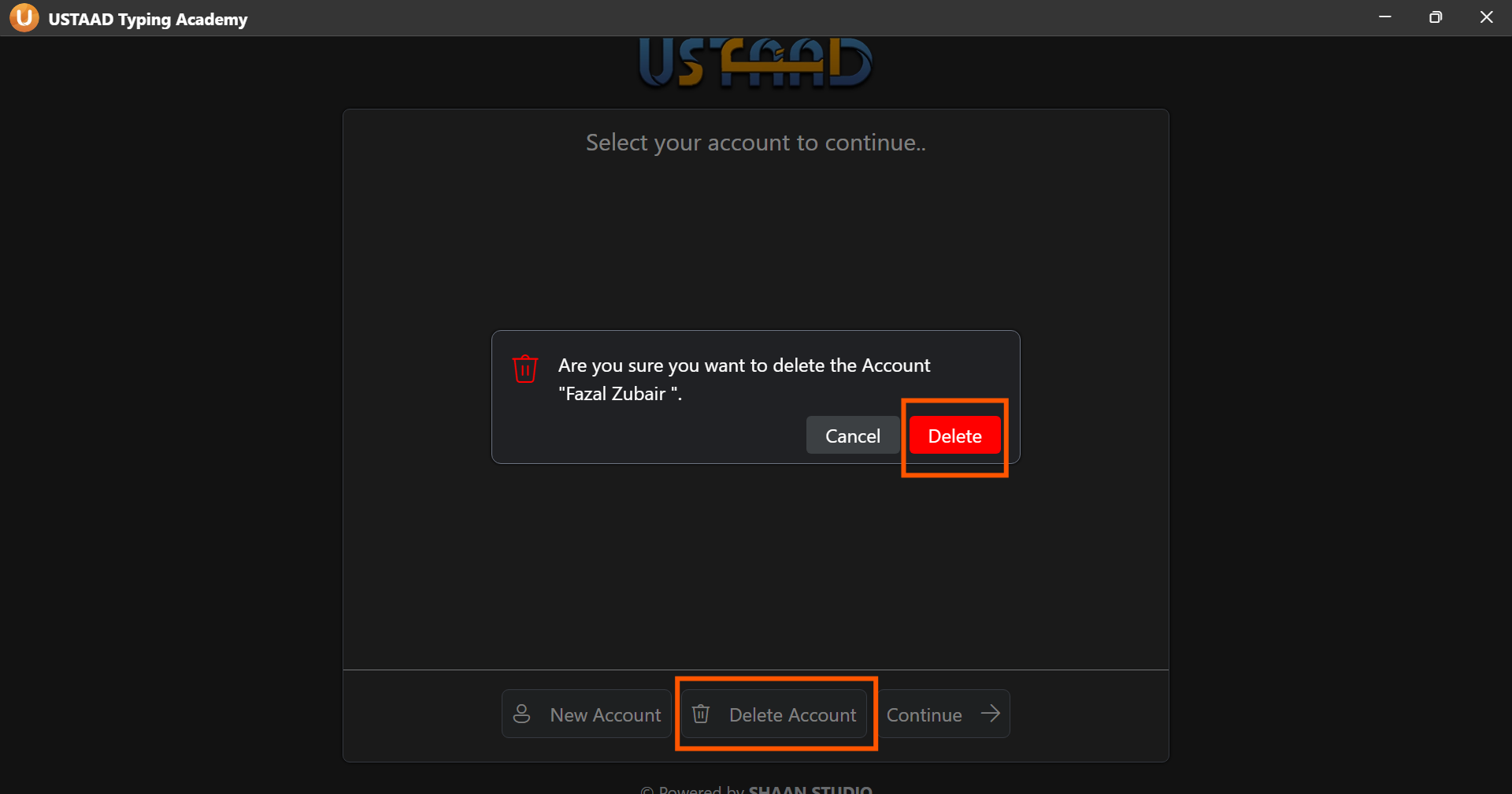
Once an account is deleted, all data belonging to that account is permanently removed and cannot be recovered.
Continue
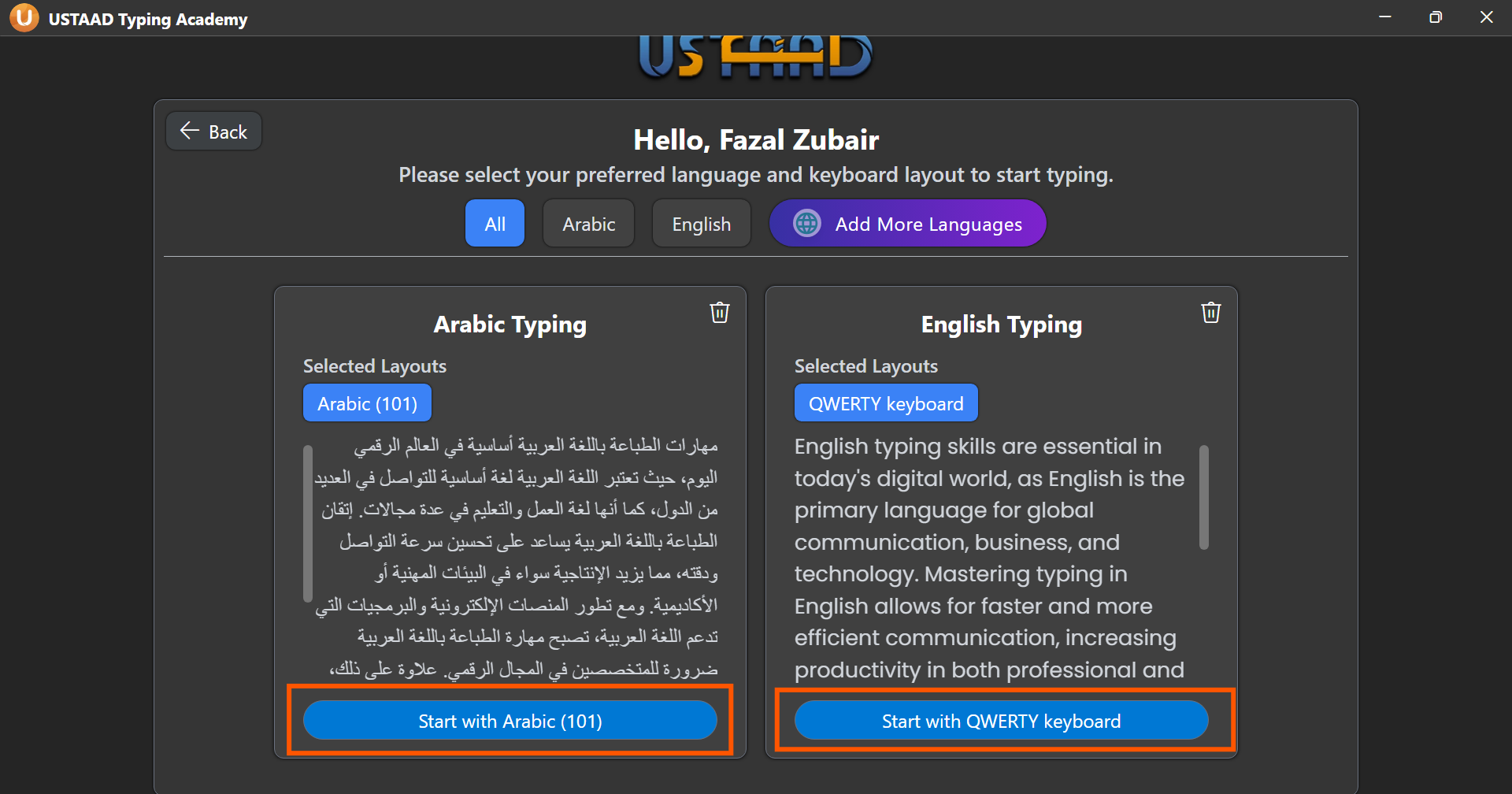
This option confirms your selected account and moves you forward in the setup. Clicking Continue will take you to the Language Selection page, where you will choose the language you want to practice typing in.
Step 4: Moving to Language Selection
After clicking Continue with your account selected, USTAAD will take you to the Language Selection page. Your account is now active and ready to track your progress from this point forward.
Common Issues
The Continue button is not working. Make sure you have entered an account name. The name field cannot be left blank.
I accidentally deleted my account. Unfortunately, deleted accounts and their data cannot be recovered. You will need to create a new account and start fresh.
I cannot see my previously created account. If you are using the web version, your accounts are stored in browser local storage. Clearing your browser cache or switching browsers will remove all saved accounts. If you are using the desktop version, your accounts are stored in a local file on your device and will persist across reinstalls unless the file is manually deleted or the operating system is reinstalled.
Can I rename an account after creating it? Account renaming is not currently available. If you want to change the name, you will need to delete the existing account and create a new one.